Rate Limiting
Rate Limiting in Connect allows you to control incoming request traffic to protect services from abuse, unexpected spikes, and denial-of-service scenarios.
It ensures fair usage across clients while maintaining service stability and predictable performance.
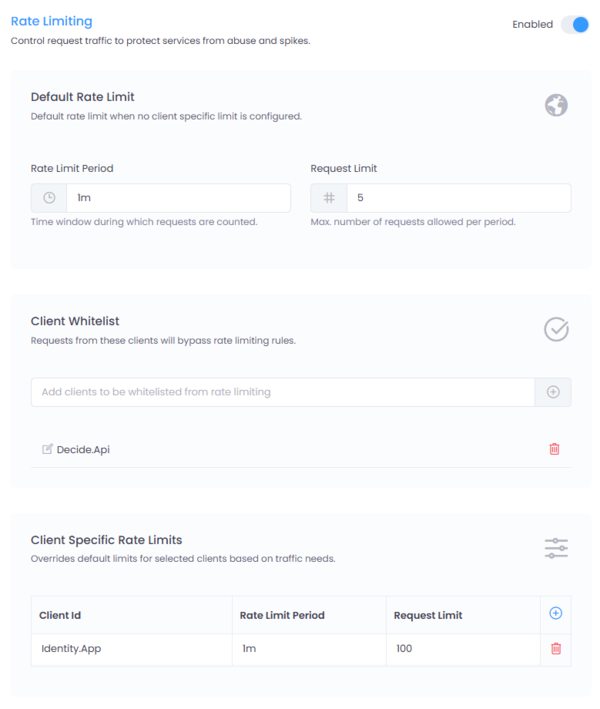
Figure 1: Rate Limiting configuration interface in Connect.
Where to Configure
Navigate to:
Service → Settings → Rate Limiting
Click the Enabled toggle to activate enforcement for the selected service.
How It Works
Connect evaluates requests in the following order:
- Client Whitelist
- Client-Specific Rule
- Default Rule
If no rule applies, rate limiting is not enforced.
Default Rate Limit
The Default Rate Limit applies when no client-specific configuration exists.
Configuration Fields
| Field | Description |
|---|---|
| Rate Limit Period | Time window during which requests are counted (e.g., 30s, 5m, 2h, 1d) |
| Request Limit | Maximum number of requests allowed within the defined period |
Example
Rate Limit Period: 1m
Request Limit: 100
This means:
Each client can make up to 100 requests per minute.
Client Whitelist
The Client Whitelist allows specific clients to bypass all rate limiting rules.
Use this for:
- Internal integrations
- Trusted partner systems
- Monitoring services
- Regulatory reporting APIs
Once added, the client will not be subject to default or client-specific limits.
Client-Specific Rate Limits
Override the default rule for selected clients.
Configuration Fields
| Field | Description |
|---|---|
| Client ID | Identifier of the client application |
| Rate Limit Period | Time window for counting requests |
| Request Limit | Maximum allowed requests in that window |
Example
Client ID: Demo.Client
Rate Limit Period: 1m
Request Limit: 500
This client can make 500 requests per minute even if the default limit is lower.
Enforcement Behavior
When a rate limit is exceeded:
- The request is rejected
- HTTP status
429 Too Many Requestsis returned - Response body
Rate limit exceededis returned - Optional response headers may include quota information
Response
When rate limit headers are enabled, Connect includes quota information in every response.
Successful Request (Within Limit)
HTTP/1.1 200 OK
X-RateLimit-Limit: 100
X-RateLimit-Remaining: 96
X-RateLimit-Reset: 2026-02-17T17:24:26.8159153Z
- X-RateLimit-Limit – Maximum requests allowed in the current window
- X-RateLimit-Remaining – Remaining requests available
- X-RateLimit-Reset – UTC timestamp when the rate limit window resets
Rate Limit Exceeded
When the configured limit is exceeded, Connect responds with:
HTTP/1.1 429 Too Many Requests
Retry-After: 54
- 429 Too Many Requests – Indicates the quota has been exceeded
When rate limit headers are enabled, Connect also includes the Retry-After header
Fixed Window
Rate limits are enforced per configured time window.
For example:
Rate Limit Period: 1m
Request Limit: 100
If a client sends 100 requests within the first 15 seconds of the minute:
- The quota is fully consumed.
- Any additional requests during the remainder of that minute will be rejected.
- Connect will respond with HTTP 429 Too Many Requests.
- Requests will only be accepted again when the rate limit window resets.
The rate limit counter automatically resets at the end of the configured period.
- Retry-After – Number of seconds before a new request may be attempted
The HTTP status code, rate limit headers, and message can be customized in Global Settings.
Rate limiting is enforced at the Gateway Layer, before forwarding the request to downstream services.
Best Practices
- Use conservative default limits.
- Grant higher limits to trusted partners using client-specific rules.
- Avoid overusing whitelist entries.
- Monitor logs to detect abnormal usage patterns.
- Use realistic time windows (e.g.,
1m,5minstead of5s).